
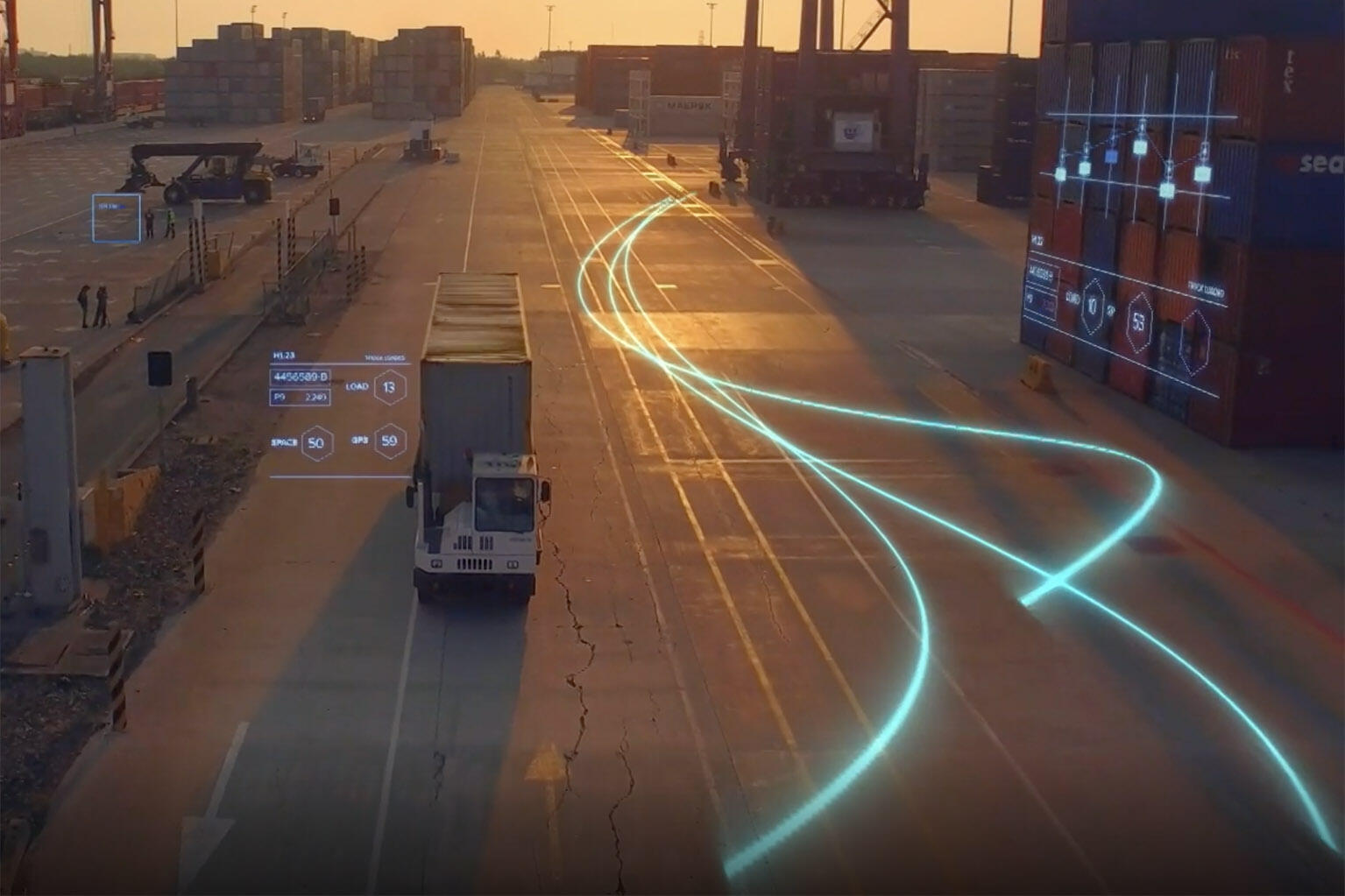
Everyone and everything: Visible, Connected and Optimized.



Across every major industry—Zebra is there


Office Depot Increases Task Completion Rate by 42% with Zebra Solutions
Office Depot enhanced its operational efficiency by integrating Zebra's Workcloud software and mobile devices, improving its on-time task completion rate. The retailer aimed to adapt to evolving customer and employee needs, streamline operations and provide superior service.

Machine Learning Technology Helps STIHL Cut Cost, Time and Human Error
STIHL is a global name in the development, manufacturing and distribution of power tools for forestry and agriculture. As the world's top-selling chainsaw brand, quality assurance is an integral part of the company's production process.

Banner Health Elevates Care and Accelerates Treatment
Banner Health is a not-for-profit healthcare network that includes 30 acute care and critical access hospitals, 60 urgent care locations and more than 200 physician clinics across six states.


A Practical Approach to Innovating in the Warehouse
Join Zebra Technologies in this webinar to discuss Innovating the Warehouse during these unprecedented times. Explore principles that will help increase visibility, drive efficiencies, and reduce cost within your operation through advanced technology. In this webinar you will learn how to develop a roadmap to reach your operational goals.

Fire-Rescue Webinar: Streamlined Asset Management with RFID
There's now a better way to do inventory — one that allowed the Bonita Springs Fire District to achieve cost savings of up to 50% per year on medications and disposables. Between oversupply, expiring medications and inaccurate counts, fire districts have a hard time balancing inventory to ensure they have exactly what they need. Learn how to save money and open a world of new possibilities.

Innovating Retail in a Time of Change
Retail has experienced a step change, moving from crisis to a new normal in an unprecedented short period of time. The need for quick, frictionless shopping experiences has accelerated, and a mandate for customer and associate safety has grown. Is retail getting it right for right now? Join Zebra as we discuss how retail is moving forward to address customer demands through technology.