Transform retail operations with Zebra’s retail technology solutions, featuring hardware and software for improving inventory management and empowering teams.
Streamline operations with Zebra’s healthcare technology solutions, featuring hardware and software to improve staff collaboration and optimize workflows.
Enhance processes with Zebra’s manufacturing technology solutions, featuring hardware and software for automation, data analysis, and factory connectivity.
Zebra’s transportation and logistics technology solutions feature hardware and software for enhancing route planning, visibility, and automating processes.
Learn how Zebra's public sector technology solutions empower state and local governments to improve efficiency with asset tracking and data capture devices.
Zebra's hospitality technology solutions equip your hotel and restaurant staff to deliver superior customer and guest service through inventory tracking and more.
Zebra's market-leading solutions and products improve customer satisfaction with a lower cost per interaction by keeping service representatives connected with colleagues, customers, management and the tools they use to satisfy customers across the supply chain.
Empower your field workers with purpose-driven mobile technology solutions to help them capture and share critical data in any environment.
Zebra's range of Banking technology solutions enables banks to minimize costs and to increase revenue throughout their branch network. Learn more.
Zebra's range of mobile computers equip your workforce with the devices they need from handhelds and tablets to wearables and vehicle-mounted computers.
Zebra's desktop, mobile, industrial, and portable printers for barcode labels, receipts, RFID tags and cards give you smarter ways to track and manage assets.
Zebra's 1D and 2D corded and cordless barcode scanners anticipate any scanning challenge in a variety of environments, whether retail, healthcare, T&L or manufacturing.
Zebra's extensive range of RAIN RFID readers, antennas, and printers give you consistent and accurate tracking.
Choose Zebra's reliable barcode, RFID and card supplies carefully selected to ensure high performance, print quality, durability and readability.
Zebra's rugged tablets and 2-in-1 laptops are thin and lightweight, yet rugged to work wherever you do on familiar and easy-to-use Windows or Android OS.
With Zebra's family of fixed industrial scanners and machine vision technologies, you can tailor your solutions to your environment and applications.
Zebra’s line of kiosks can meet any self-service or digital signage need, from checking prices and stock on an in-aisle store kiosk to fully-featured kiosks that can be deployed on the wall, counter, desktop or floor in a retail store, hotel, airport check-in gate, physician’s office, local government office and more.
Adapt to market shifts, enhance worker productivity and secure long-term growth with AMRs. Deploy, redeploy and optimize autonomous mobile robots with ease.
Discover Zebra’s range of accessories from chargers, communication cables to cases to help you customize your mobile device for optimal efficiency.
Zebra's environmental sensors monitor temperature-sensitive products, offering data insights on environmental conditions across industry applications.
Zebra's location technologies provide real-time tracking for your organization to better manage and optimize your critical assets and create more efficient workflows.
Enhance frontline operations with Zebra’s AI software solutions, which optimize workflows, streamline processes, and simplify tasks for improved business outcomes.
Empower your frontline with Zebra Companion AI, offering instant, tailored insights and support to streamline operations and enhance productivity.
Boost productivity with Zebra Frontline AI Enablers: AI vision models, sample apps, and APIs streamline workflows for efficient business processes.
Zebra Frontline AI Blueprints deliver adaptable, real-world AI frameworks that automate manual tasks and drive efficiency in high-pressure frontline operations.
Zebra Workcloud, enterprise software solutions boost efficiency, cut costs, improve inventory management, simplify communication and optimize resources.
Keep labor costs low, your talent happy and your organization compliant. Create an agile operation that can navigate unexpected schedule changes and customer demand to drive sales, satisfy customers and improve your bottom line.
Drive successful enterprise collaboration with prioritized task notifications and improved communication capabilities for easier team collaboration.
Get full visibility of your inventory and automatically pinpoint leaks across all channels.
Reduce uncertainty when you anticipate market volatility. Predict, plan and stay agile to align inventory with shifting demand.
Drive down costs while driving up employee, security, and network performance with software designed to enhance Zebra's wireless infrastructure and mobile solutions.
Explore Zebra’s printer software to integrate, manage and monitor printers easily, maximizing IT resources and minimizing down time.
Make the most of every stage of your scanning journey from deployment to optimization. Zebra's barcode scanner software lets you keep devices current and adapt them to your business needs for a stronger ROI across the full lifecycle.
RFID development, demonstration and production software and utilities help you build and manage your RFID deployments more efficiently.
RFID development, demonstration and production software and utilities help you build and manage your RFID deployments more efficiently.
Zebra DNA is the industry’s broadest suite of enterprise software that delivers an ideal experience for all during the entire lifetime of every Zebra device.
Advance your digital transformation and execute your strategic plans with the help of the right location and tracking technology.
Boost warehouse and manufacturing operations with Symmetry, an AMR software for fleet management of Autonomous Mobile Robots and streamlined automation workflows.
The Zebra Aurora suite of machine vision software enables users to solve their track-and-trace, vision inspection and industrial automation needs.
Zebra Aurora Focus brings a new level of simplicity to controlling enterprise-wide manufacturing and logistics automation solutions. With this powerful interface, it’s easy to set up, deploy and run Zebra’s Fixed Industrial Scanners and Machine Vision Smart Cameras, eliminating the need for different tools and reducing training and deployment time.
Aurora Imaging Library™, formerly Matrox Imaging Library, machine-vision software development kit (SDK) has a deep collection of tools for image capture, processing, analysis, annotation, display, and archiving. Code-level customization starts here.
Aurora Design Assistant™, formerly Matrox Design Assistant, integrated development environment (IDE) is a flowchart-based platform for building machine vision applications, with templates to speed up development and bring solutions online quicker.
Designed for experienced programmers proficient in vision applications, Aurora Vision Library provides the same sophisticated functionality as our Aurora Vision Studio software but presented in programming language.
Aurora Vision Studio, an image processing software for machine & computer vision engineers, allows quick creation, integration & monitoring of powerful OEM vision applications.
Adding innovative tech is critical to your success, but it can be complex and disruptive. Professional Services help you accelerate adoption, and maximize productivity without affecting your workflows, business processes and finances.
Zebra's Managed Service delivers worry-free device management to ensure ultimate uptime for your Zebra Mobile Computers and Printers via dedicated experts.
Find ways you can contact Zebra Technologies’ Support, including Email and Chat, ask a technical question or initiate a Repair Request.
Zebra's Circular Economy Program helps you manage today’s challenges and plan for tomorrow with smart solutions that are good for your budget and the environment.
The Zebra Knowledge Center provides learning expertise that can be tailored to meet the specific needs of your environment.
Zebra has a wide variety of courses to train you and your staff, ranging from scheduled sessions to remote offerings as well as custom tailored to your specific needs.
Build your reputation with Zebra's certification offerings. Zebra offers a variety of options that can help you progress your career path forward.
Build your reputation with Zebra's certification offerings. Zebra offers a variety of options that can help you progress your career path forward.
Image Component
Introduction
The Image Component allows you to place a single image on a page.
See a live example here, above Partners at HIMSS24.
Need Help?
If you need help with a specific use case for the Image component or need guidance with appropriate configuration, please contact the web team.
Specifications
Character Limit/Usage: This component does not support freeform text.
Image Requirements: This component can accept any image and render it at its native pixel size. For example, if you use a 3600x2700 pixel image in a standalone component placed in the middle of a page, it will display at that exact size. However, to keep site load times as low as possible, we recommend keeping images to 3600x3600 pixels or smaller.
Image must be uploaded to the DAM before it can be placed on the page.
- Dimensions: 3600x3600 pixels maximum
- Aspect ratio: 1:1, 3:2, 4:3, 5:4, 16:9 (dependent on use case)
- File type: jpg
Video Requirements: This component does not support video.
Authoring Instructions
This component is often used in conjunction within other components and is commonly used within a container with a column control configuration.
When the image component is used within a column control configuration, the image will adapt to fit the available space. For instance, if you create a container with a 50/50 column layout and place an image component in one of the columns, the image will be confined to that column’s dimensions and will not expand beyond it. As such, we recommend testing various images to find one that best fits your specific use case.
SEO Guidance
Please ensure that alternative text is added to images. This can be done by using the description from the DAM. When you add an image with a completed description in the DAM, the alt text will be automatically applied. If you prefer to override the DAM description, you can manually add your preferred alt text in the image component properties.
The alt image text should describe the image relative to the content of the page.
Avoid using PNG files if the image background is NOT invisible. PNG files tend to be bigger and takes longer to load.
Styling Options and Instructions
There is a Circular Border style available via the style icon in the component which should be authored with Image with 1X1 aspect ratio. This is most commonly used for blog author bios to display their headshot
Images can be horizontally aligned (Left, Center, Right) by using Horizontal Alignment option in Properties tab.
Use Cases and Style Variations
Component with 'Original' configuration set. This does say (Performance Impact) but configuring as 'Original' is recommended.
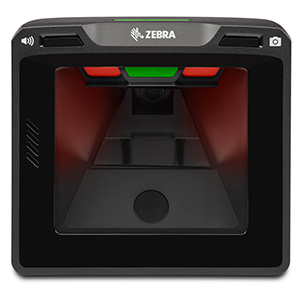
Component with Responsive Landscape set.

Component set with Circular Border style variation.

Image in 2 Column Configuration

Transportation & Logistics Solutions
In today's world, the demands on transportation and logistics companies are higher than ever. Staff are overextended and under pressure, compliance is complex, and customers expect service and information instantly. Fortunately, Zebra gives you unprecedented visibility into every corner of your operation - to make smarter, more informed decisions, and ensure flawless fulfillment.
Legal Terms of Use Privacy Policy Supply Chain Transparency
ZEBRA and the stylized Zebra head are trademarks of Zebra Technologies Corp., registered in many jurisdictions worldwide. All other trademarks are the property of their respective owners. Note: Some content or images on zebra.com may have been generated in whole or in part by AI. ©2026 Zebra Technologies Corp. and/or its affiliates.