0:00 / 0:00

Industry
Retail
Healthcare
Manufacturing
Transportation and Logistics
Public Sector
Hospitality
Field Operations
Mobile Technology for Energy and Utilities
Transform retail operations with Zebra’s retail technology solutions, featuring hardware and software for improving inventory management and empowering teams.
Streamline operations with Zebra’s healthcare technology solutions, featuring hardware and software to improve staff collaboration and optimise workflows.
Enhance processes with Zebra’s manufacturing technology solutions, featuring hardware and software for automation, data analysis, and factory connectivity.
Zebra’s transportation and logistics technology solutions feature hardware and software for enhancing route planning, visibility, and automating processes.
Zebra's public sector technology solutions enhance decision-making, streamline operations, and safeguard communities with advanced software and rugged hardware.
Defence
Border Control Prison Services
Public Safety
Asset Tracking Public Safety
Asset Tracking Defence
Critical Communication
Customs Immigration
E-Citation
Evidence Management
Identity Verification
Real-Time Mobile Data
Remote Monitoring Surveillance
Situational Training
Inmate Tracking Management
Zebra's hospitality technology solutions equip your hotel and restaurant staff to deliver superior customer and guest service through inventory tracking and more.
Zebra's market-leading solutions and products improve customer satisfaction with a lower cost per interaction by keeping service representatives connected with colleagues, customers, management and the tools they use to satisfy customers across the supply chain.
Empower your field workers with purpose-driven mobile technology solutions to help them capture and share critical data in any environment.
Asset Lifecycle Management
Customer Service Technology
Field Dispatch and Routing
Emergency Response Planning and Management
Gas and Electric
GIS Asset Mapping
Digital Safety Inspection and Compliance Reporting
Inventory Management for Energy and Utilities
Mining
Oil and Gas
Real-time Remote Asset Monitoring
Maintenance and Repair Scheduling and Completion
Telecommunications
Water Utilities
Mobile Work Order Management
Hardware
Mobile Computers
Printers
Barcode Scanners
RFID
Printing Supplies
Tablets
Machine Vision and Industrial Fixed Scanners
Interactive Kiosks
Accessories
Environmental Sensors
Location Technologies
Zebra's range of mobile computers equip your workforce with the devices they need from handhelds and tablets to wearables and vehicle-mounted computers.
Zebra's desktop, mobile, industrial, and portable printers for barcode labels, receipts, RFID tags and cards give you smarter ways to track and manage assets.
Zebra's 1D and 2D corded and cordless barcode scanners anticipate any scanning challenge in a variety of environments, whether retail, healthcare, T&L or manufacturing.
Zebra's extensive range of RAIN RFID readers, antennas, and printers give you consistent and accurate tracking.
Choose Zebra's reliable barcode, RFID and card supplies carefully selected to ensure high performance, print quality, durability and readability.
Zebra's rugged tablets and 2-in-1 laptops are thin and lightweight, yet rugged to work wherever you do on familiar and easy-to-use Windows or Android OS.
With Zebra's family of fixed industrial scanners and machine vision technologies, you can tailor your solutions to your environment and applications.
Zebra’s line of kiosks can meet any self-service or digital signage need, from checking prices and stock on an in-aisle store kiosk to fully-featured kiosks that can be deployed on the wall, counter, desktop or floor in a retail store, hotel, airport check-in gate, physician’s office, local government office and more.
Discover Zebra’s range of accessories from chargers, communication cables to cases to help you customise your mobile device for optimal efficiency.
Zebra's environmental sensors monitor temperature-sensitive products, offering data insights on environmental conditions across industry applications.
Zebra's location technologies provide real-time tracking for your organisation to better manage and optimise your critical assets and create more efficient workflows.
Software
AI Software
Zebra Workcloud Solutions
Device Software
Machine Vision Software
Enhance frontline operations with Zebra’s AI software solutions, which optimize workflows, streamline processes, and simplify tasks for improved business outcomes.
Zebra Workcloud, enterprise software solutions boost efficiency, cut costs, improve inventory management, simplify communication and optimize resources.
Workcloud Optimization Suite
Keep labour costs low, your talent happy and your organisation compliant. Create an agile operation that can navigate unexpected schedule changes and customer demand to drive sales, satisfy customers and improve your bottom line.
Workcloud Enterprise Collaboration Suite
Drive successful enterprise collaboration with prioritized task notifications and improved communication capabilities for easier team collaboration.
Workcloud Inventory Optimization Suite
Get full visibility of your inventory and automatically pinpoint leaks across all channels.
Workcloud Demand Intelligence Suite
Reduce uncertainty when you anticipate market volatility. Predict, plan and stay agile to align inventory with shifting demand.
Mobile Computer Software
Drive down costs while driving up employee, security, and network performance with software designed to enhance Zebra's wireless infrastructure and mobile solutions.
Printer Software
Explore Zebra’s printer software to integrate, manage and monitor printers easily, maximising IT resources and minimising down time.
Scanner Software
Make the most of every stage of your scanning journey from deployment to optimisation. Zebra's barcode scanner software lets you keep devices current and adapt them to your business needs for a stronger ROI across the full lifecycle.
RFID Software
RFID development, demonstration and production software and utilities help you build and manage your RFID deployments more efficiently.
Developer Software
RFID development, demonstration and production software and utilities help you build and manage your RFID deployments more efficiently.
Zebra DNA
Zebra DNA is the industry’s broadest suite of enterprise software that delivers an ideal experience for all during the entire lifetime of every Zebra device.
Location and Tracking
Advance your digital transformation and execute your strategic plans with the help of the right location and tracking technology.
Zebra Symmetry AMR Software
The Zebra Aurora suite of machine vision software enables users to solve their track-and-trace, vision inspection and industrial automation needs.
Aurora Focus
Zebra Aurora Focus brings a new level of simplicity to controlling enterprise-wide manufacturing and logistics automation solutions. With this powerful interface, it’s easy to set up, deploy and run Zebra’s Fixed Industrial Scanners and Machine Vision Smart Cameras, eliminating the need for different tools and reducing training and deployment time.
Aurora Imaging Library
Aurora Imaging Library™, formerly Matrox Imaging Library, machine-vision software development kit (SDK) has a deep collection of tools for image capture, processing, analysis, annotation, display, and archiving. Code-level customisation starts here.
Aurora Design Assistant
Aurora Design Assistant™, formerly Matrox Design Assistant, integrated development environment (IDE) is a flowchart-based platform for building machine vision applications, with templates to speed up development and bring solutions online quicker.
Aurora Vision Library
Designed for experienced programmers proficient in vision applications, Aurora Vision Library provides the same sophisticated functionality as our Aurora Vision Studio software but presented in programming language.
Aurora Vision Studio
Aurora Vision Studio, an image processing software for machine & computer vision engineers, allows quick creation, integration & monitoring of powerful OEM vision applications.
Services
Maintenance Plans
Visibility Services
Professional Services
Zebra Managed Services
Technical Support
Circular Economy
Device Rental
Adding innovative tech is critical to your success, but it can be complex and disruptive. Professional Services help you accelerate adoption, and maximise productivity without affecting your workflows, business processes and finances.
Zebra's Managed Service delivers worry-free device management to ensure ultimate uptime for your Zebra Mobile Computers and Printers via dedicated experts.
Find ways you can contact Zebra Technologies’ Support, including Email and Chat, ask a technical question or initiate a Repair Request.
Zebra's Circular Economy Program helps you manage today’s challenges and plan for tomorrow with smart solutions that are good for your budget and the environment.
Support
Product Support
Support Resources
Support Notifications
Mobile Computers Support
Printers Support
Barcode Scanners Support
RFID Support
Tablets Support
Machine Vision and Fixed Industrial Scanners Support
Interactive Kiosks Support
Software Support
Laser Wristband Support
OEM Scan Modules and Fixed Mount Scanners Support
Intelligent Edge Solutions Support
Location Technologies Support
Environmental Sensors Support
Cabinets Support
Partners
Connect with a Zebra Partner
Become a Zebra Partner
Partner Resources
Important Update: Effective July 1, 2026, Zebra is implementing mandatory Multi-Factor Authentication (MFA) to enhance security. Learn more.
Zebra Repair Guides
Register For An Account
Basic Guides
- Introduction to the Portal
- Submit a Repair
- View Device Entitlement
- Dispute Device Entitlement
- View Repair Details
- Download Repair Documents
- View Contract Details
- Repair Status
- Shipping Instructions
Additional Guides
Dispute Device Entitlement
RMA Portal
https://repair.zebra.com/siebel/app/rma/enu
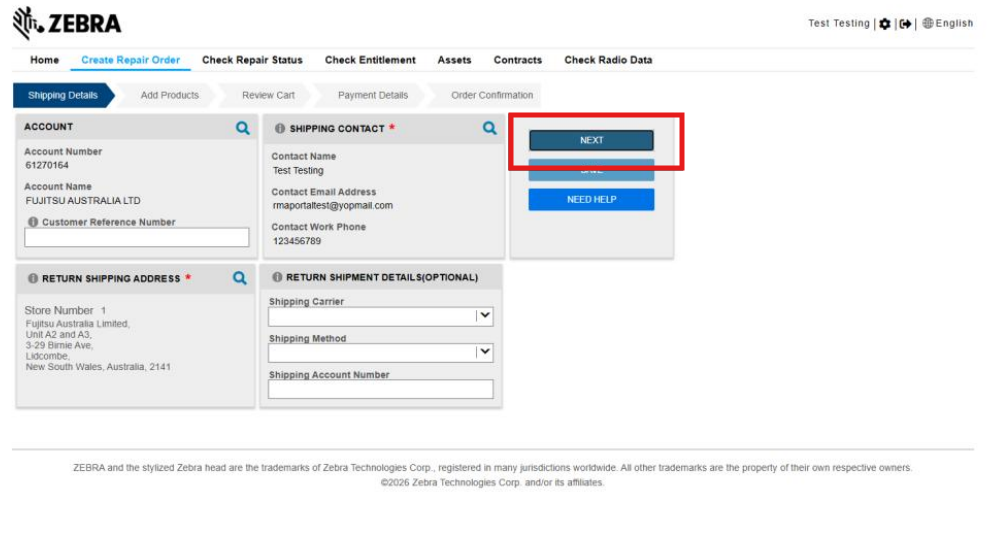
Fill the information required in the shipping details step
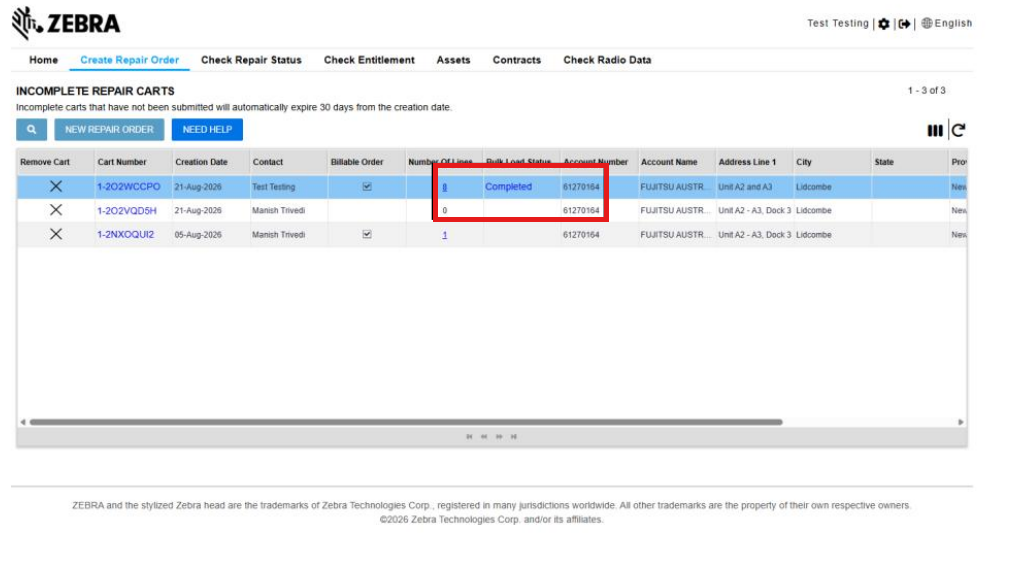
When the bulk load is completed, click “Completed” to navigate to the “review cart” step
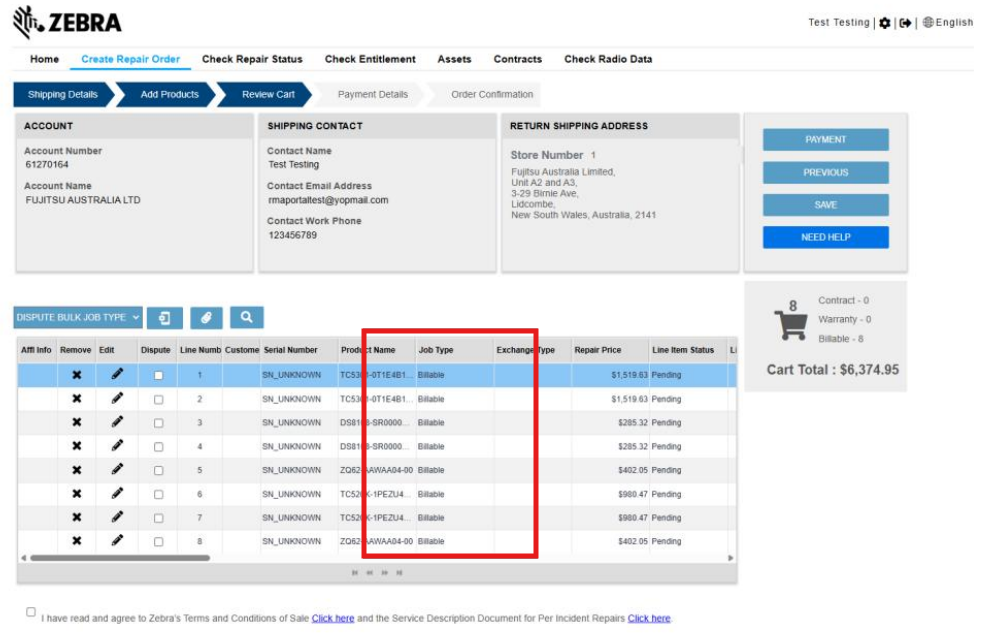
Review the job type information
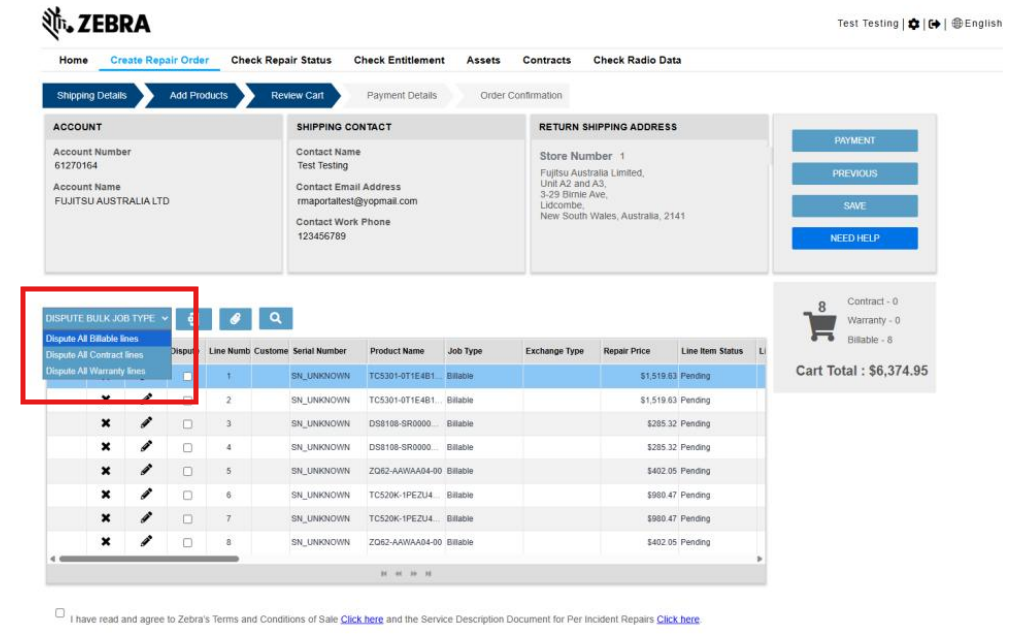
To dispute all the billable line items,
Click “Dispute Bulk Job Type” and choose the “dispute all billable lines” option
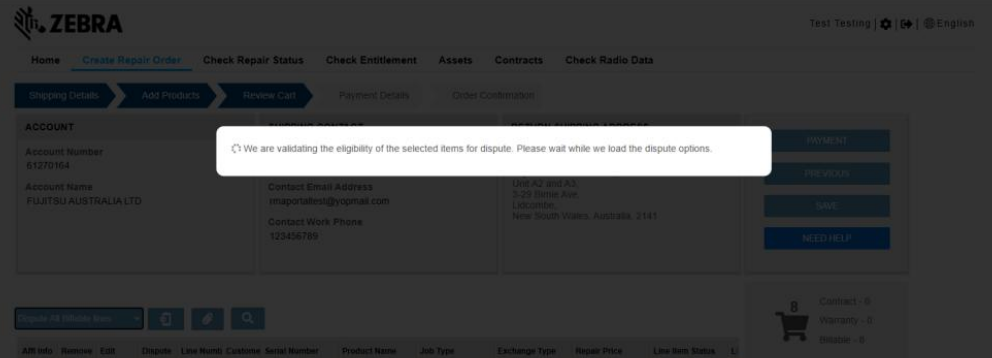
Portal performs validation and prompts for Dispute reason
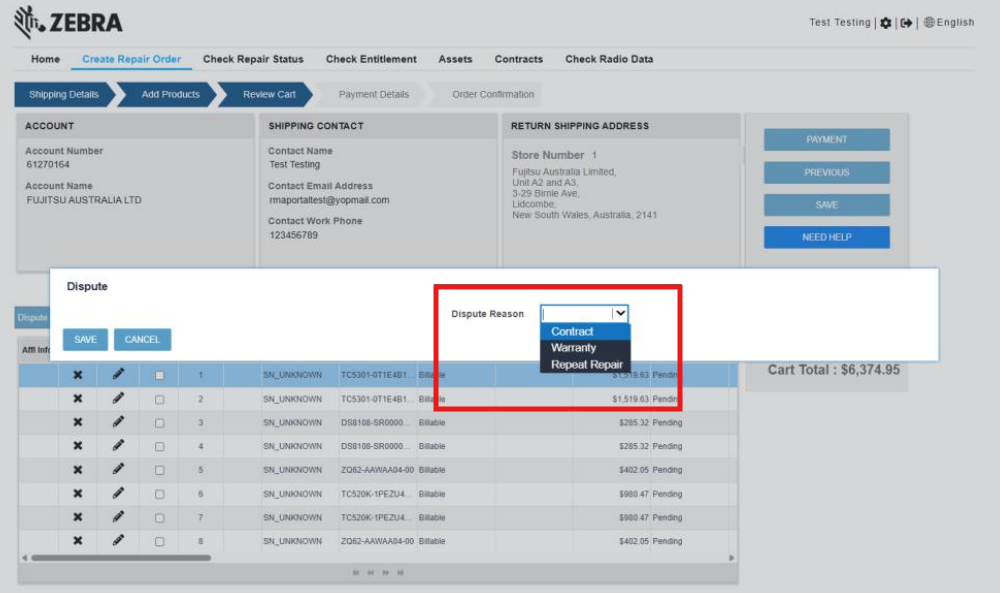
Select “Contract” as the dispute reason
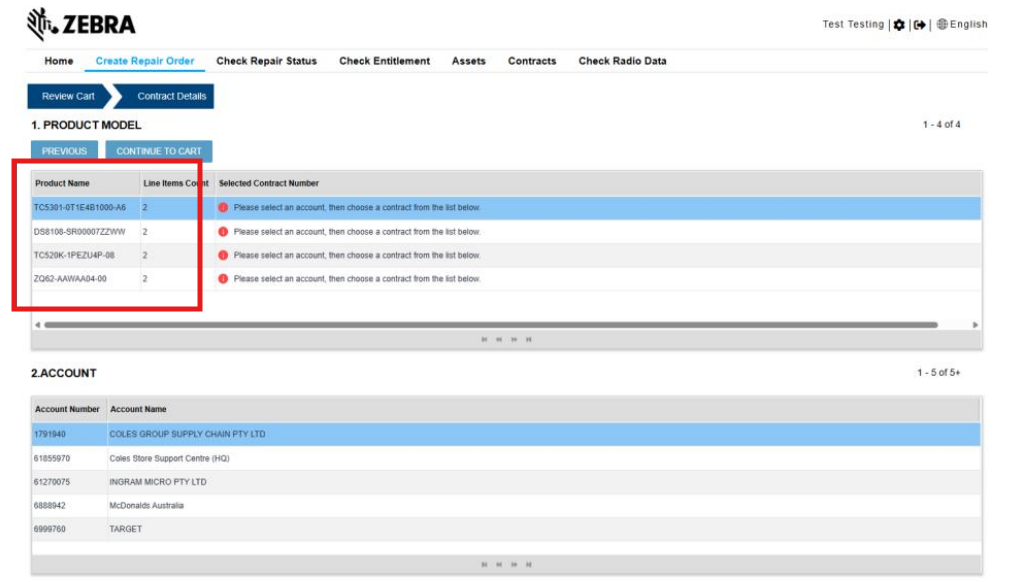
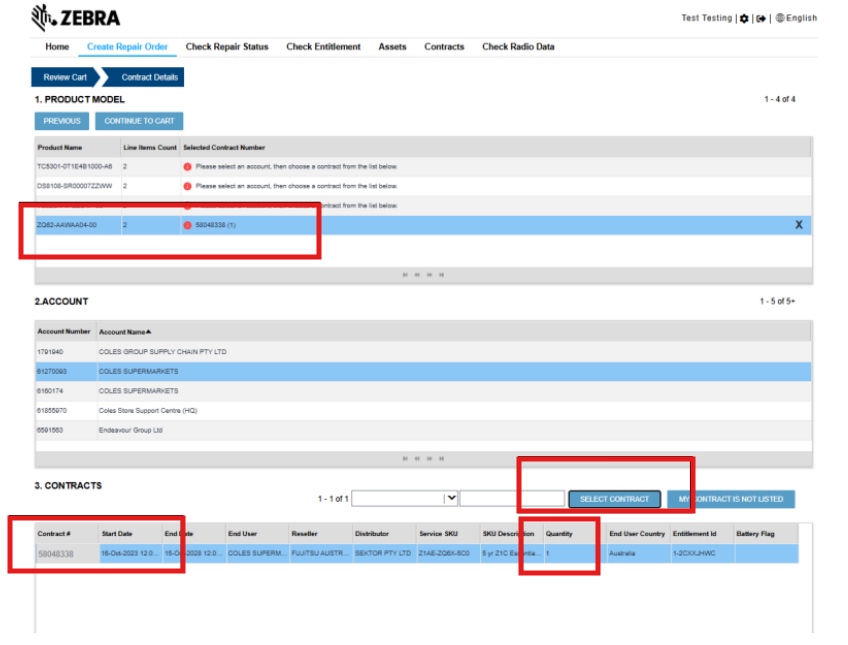
Contract lookup page lists all the product name with the line-item count and prompts you to select the account and contract from the list.
Select the product followed by the Account from the table.
Contract table will list all the eligible contract that contains product name and selected account. Quantity information is listed for reference
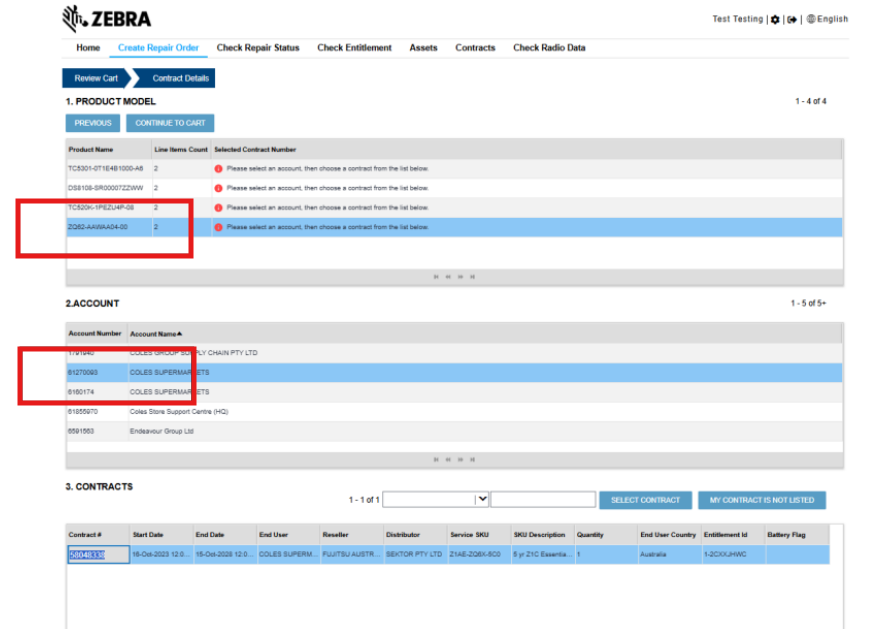
Click “Select contract” button to apply dispute to the select product name in the table above.
Selected contract along with appliable quantity is listed for review. In this example, contract has just one quantity. Selected contract will be applied to one of the product line item.
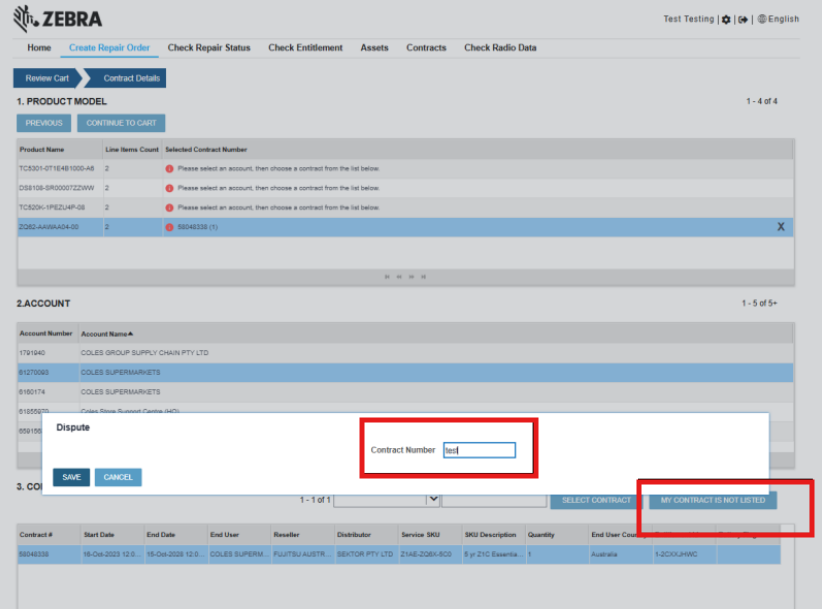
For the second product line item, you can enter a contract number manually if there are no eligible contracts listed in the table.
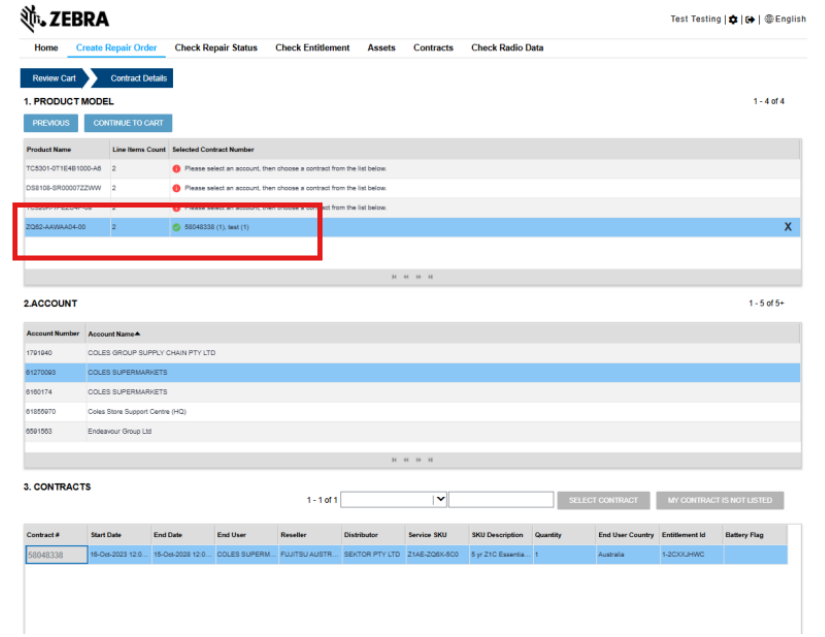
Green tick appeared to indicate that the product line has been disputed successfully.
Repeat the same for the other products in the table.
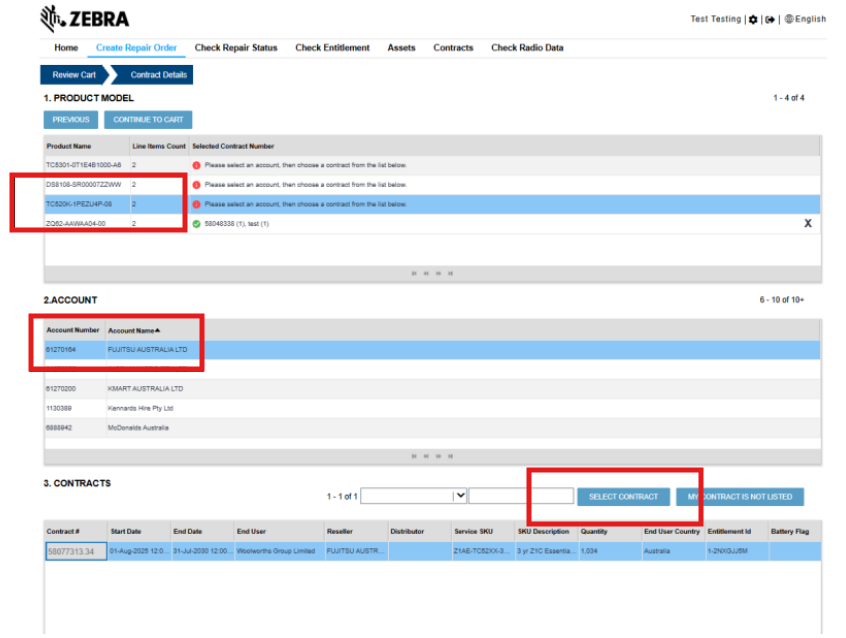
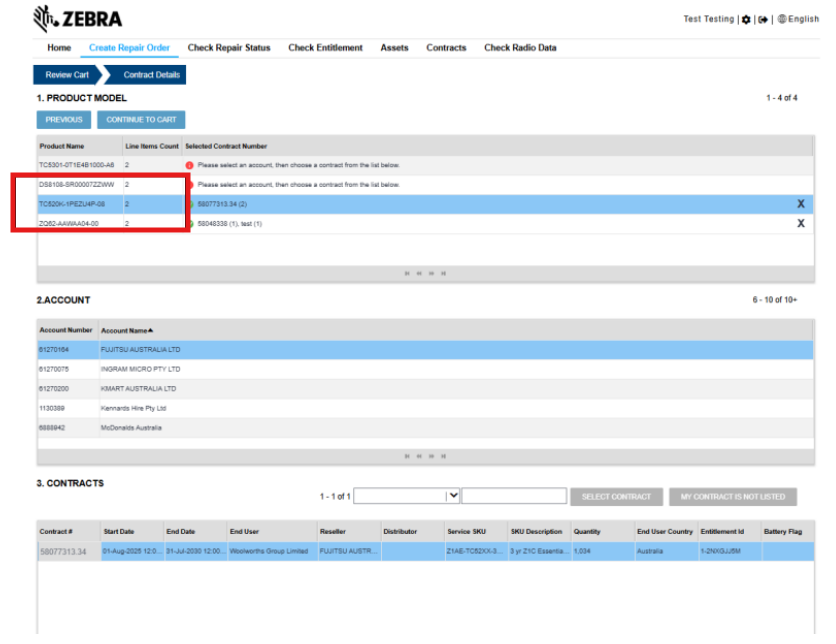
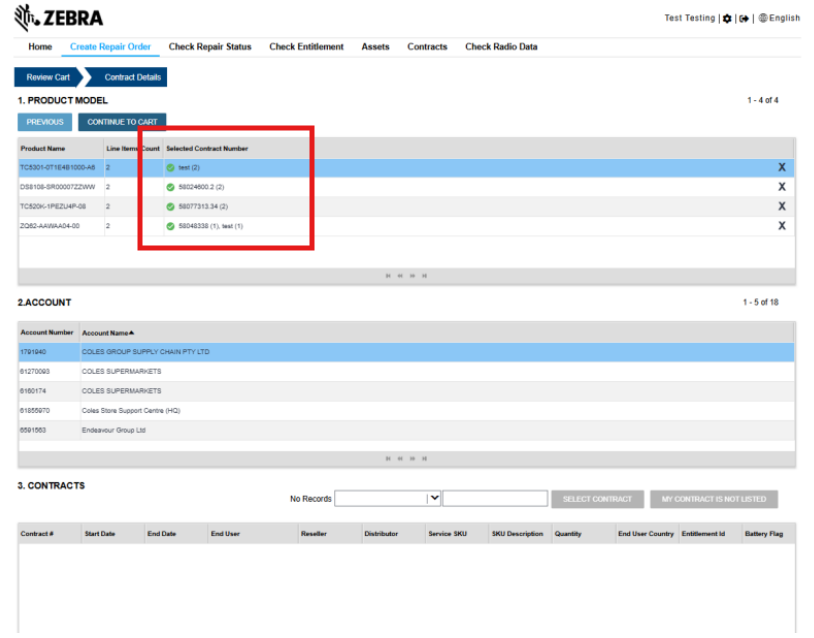
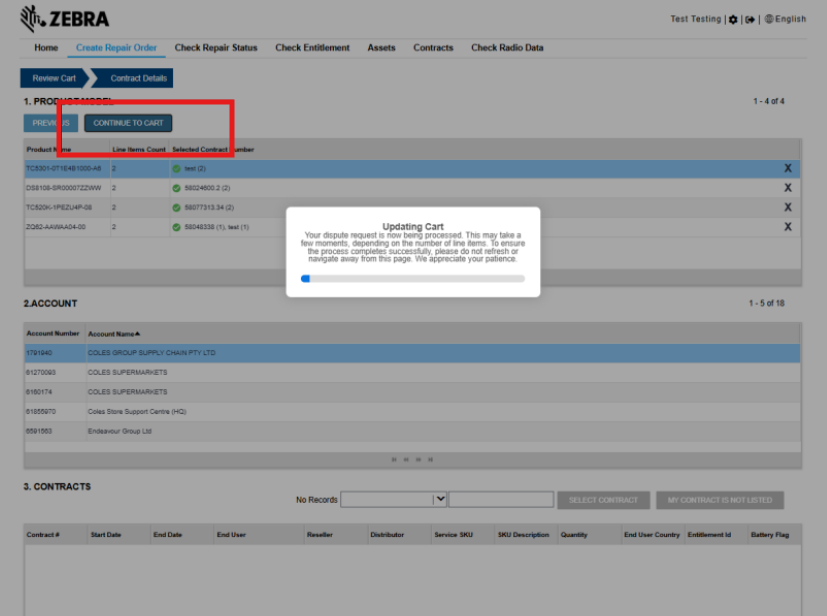
When contracts are selected for all the products, click “continue to cart”.
This process will take time depending on the number of line items that are disputed.
AVOID REFRESHING the page while the portal is processing the dispute.
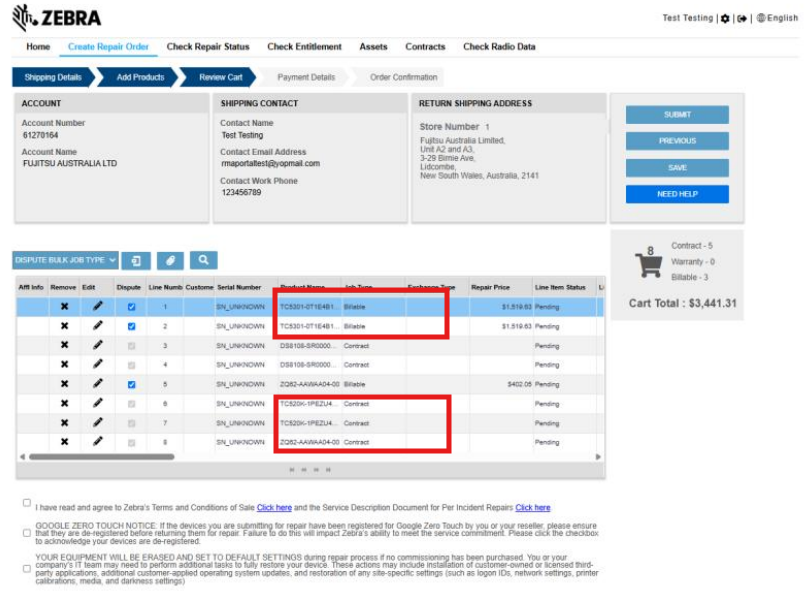
You can proceed to submit the repair order from the review cart page as usual.
For line items where you selected the contract from the table, Job type will be converted to Contract.
For line items where you manually entered the cotnract number, job type will remain as billable and dispute will be applied.
Additional Support Resources

Legal Terms of Use Privacy Policy Your Privacy Policy Supply Chain Transparency
The Zebra wordmark and logo are trademarks of Zebra Technologies Corp., registered in many jurisdictions worldwide. All other trademarks are the property of their respective owners. Some content or images may have been created with the assistance of AI. ©2026 Zebra Technologies Corp. and/or its affiliates.