
Transform retail operations with Zebra’s retail technology solutions, featuring hardware and software for improving inventory management and empowering teams.
Streamline operations with Zebra’s healthcare technology solutions, featuring hardware and software to improve staff collaboration and optimize workflows.
Enhance processes with Zebra’s manufacturing technology solutions, featuring hardware and software for automation, data analysis, and factory connectivity.
Zebra’s transportation and logistics technology solutions feature hardware and software for enhancing route planning, visibility, and automating processes.
Learn how Zebra's public sector technology solutions empower state and local governments to improve efficiency with asset tracking and data capture devices.
Zebra's hospitality technology solutions equip your hotel and restaurant staff to deliver superior customer and guest service through inventory tracking and more.
Zebra's market-leading solutions and products improve customer satisfaction with a lower cost per interaction by keeping service representatives connected with colleagues, customers, management and the tools they use to satisfy customers across the supply chain.
Empower your field workers with purpose-driven mobile technology solutions to help them capture and share critical data in any environment.
Zebra's range of Banking technology solutions enables banks to minimize costs and to increase revenue throughout their branch network. Learn more.
Zebra's range of mobile computers equip your workforce with the devices they need from handhelds and tablets to wearables and vehicle-mounted computers.
Zebra's desktop, mobile, industrial, and portable printers for barcode labels, receipts, RFID tags and cards give you smarter ways to track and manage assets.
Zebra's 1D and 2D corded and cordless barcode scanners anticipate any scanning challenge in a variety of environments, whether retail, healthcare, T&L or manufacturing.
Zebra's extensive range of RAIN RFID readers, antennas, and printers give you consistent and accurate tracking.
Choose Zebra's reliable barcode, RFID and card supplies carefully selected to ensure high performance, print quality, durability and readability.
Zebra's rugged tablets and 2-in-1 laptops are thin and lightweight, yet rugged to work wherever you do on familiar and easy-to-use Windows or Android OS.
With Zebra's family of fixed industrial scanners and machine vision technologies, you can tailor your solutions to your environment and applications.
Zebra’s line of kiosks can meet any self-service or digital signage need, from checking prices and stock on an in-aisle store kiosk to fully-featured kiosks that can be deployed on the wall, counter, desktop or floor in a retail store, hotel, airport check-in gate, physician’s office, local government office and more.
Discover Zebra’s range of accessories from chargers, communication cables to cases to help you customize your mobile device for optimal efficiency.
Zebra's environmental sensors monitor temperature-sensitive products, offering data insights on environmental conditions across industry applications.
Zebra's location technologies provide real-time tracking for your organization to better manage and optimize your critical assets and create more efficient workflows.
Enhance frontline operations with Zebra’s AI software solutions, which optimize workflows, streamline processes, and simplify tasks for improved business outcomes.
Empower your frontline with Zebra Companion AI, offering instant, tailored insights and support to streamline operations and enhance productivity.
Boost productivity with Zebra Frontline AI Enablers: AI vision models, sample apps, and APIs streamline workflows for efficient business processes.
Zebra Frontline AI Blueprints deliver adaptable, real-world AI frameworks that automate manual tasks and drive efficiency in high-pressure frontline operations.
Zebra Workcloud, enterprise software solutions boost efficiency, cut costs, improve inventory management, simplify communication and optimize resources.
Keep labor costs low, your talent happy and your organization compliant. Create an agile operation that can navigate unexpected schedule changes and customer demand to drive sales, satisfy customers and improve your bottom line.
Drive successful enterprise collaboration with prioritized task notifications and improved communication capabilities for easier team collaboration.
Get full visibility of your inventory and automatically pinpoint leaks across all channels.
Reduce uncertainty when you anticipate market volatility. Predict, plan and stay agile to align inventory with shifting demand.
Drive down costs while driving up employee, security, and network performance with software designed to enhance Zebra's wireless infrastructure and mobile solutions.
Explore Zebra’s printer software to integrate, manage and monitor printers easily, maximizing IT resources and minimizing down time.
Make the most of every stage of your scanning journey from deployment to optimization. Zebra's barcode scanner software lets you keep devices current and adapt them to your business needs for a stronger ROI across the full lifecycle.
RFID development, demonstration and production software and utilities help you build and manage your RFID deployments more efficiently.
RFID development, demonstration and production software and utilities help you build and manage your RFID deployments more efficiently.
Zebra DNA is the industry’s broadest suite of enterprise software that delivers an ideal experience for all during the entire lifetime of every Zebra device.
Advance your digital transformation and execute your strategic plans with the help of the right location and tracking technology.
The Zebra Aurora suite of machine vision software enables users to solve their track-and-trace, vision inspection and industrial automation needs.
Zebra Aurora Focus brings a new level of simplicity to controlling enterprise-wide manufacturing and logistics automation solutions. With this powerful interface, it’s easy to set up, deploy and run Zebra’s Fixed Industrial Scanners and Machine Vision Smart Cameras, eliminating the need for different tools and reducing training and deployment time.
Aurora Imaging Library™, formerly Matrox Imaging Library, machine-vision software development kit (SDK) has a deep collection of tools for image capture, processing, analysis, annotation, display, and archiving. Code-level customization starts here.
Aurora Design Assistant™, formerly Matrox Design Assistant, integrated development environment (IDE) is a flowchart-based platform for building machine vision applications, with templates to speed up development and bring solutions online quicker.
Designed for experienced programmers proficient in vision applications, Aurora Vision Library provides the same sophisticated functionality as our Aurora Vision Studio software but presented in programming language.
Aurora Vision Studio, an image processing software for machine & computer vision engineers, allows quick creation, integration & monitoring of powerful OEM vision applications.
Adding innovative tech is critical to your success, but it can be complex and disruptive. Professional Services help you accelerate adoption, and maximize productivity without affecting your workflows, business processes and finances.
Zebra's Managed Service delivers worry-free device management to ensure ultimate uptime for your Zebra Mobile Computers and Printers via dedicated experts.
Find ways you can contact Zebra Technologies’ Support, including Email and Chat, ask a technical question or initiate a Repair Request.
Zebra's Circular Economy Program helps you manage today’s challenges and plan for tomorrow with smart solutions that are good for your budget and the environment.
The Zebra Knowledge Center provides learning expertise that can be tailored to meet the specific needs of your environment.
Zebra has a wide variety of courses to train you and your staff, ranging from scheduled sessions to remote offerings as well as custom tailored to your specific needs.
Build your reputation with Zebra's certification offerings. Zebra offers a variety of options that can help you progress your career path forward.
Build your reputation with Zebra's certification offerings. Zebra offers a variety of options that can help you progress your career path forward.
Important Update: Effective July 1, 2026, Zebra is implementing mandatory Multi-Factor Authentication (MFA) to enhance security. Learn more.
Zebra Battery Replacement Procedure
The Proactive Battery Replacement is a new service enhancement to a core Zebra OneCare™ maintenance plan for Zebra mobile computers. Batteries will be proactively replaced when they fall under a Remaining Useful Life of less than 30 days. All batteries that are identified in this category will be sent a replacement to the end user location based on information provided during on-boarding of the service. There is no guess work involved with which batteries need replacing as the new service does all the work for you. All batteries are monitored daily / monthly using predictive analytics algorithms. When Zebra identifies a battery which will fail over the next 30 days, a new battery will be shipped. When the new battery is received at the end user location, it can be swapped out with the poor battery and the older battery can be removed from the customers operational environment.
The Proactive Battery Replacement service is currently available in the following areas/countries (included mobile devices devices today, printers and tablets to come later):
- EMEA- EU, UK, and Switzerland
- NA – US and CAN
The primary areas the service will be sold in are free trade zones where shipping can be supported from a ground freight bases from Zebra’s DC locations.
Select Your Mobile Computer
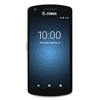
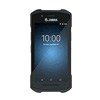
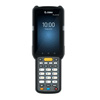
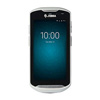
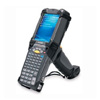
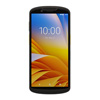
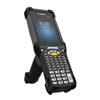
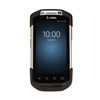
Battery replacement steps apply to all EC50 and EC55 models.
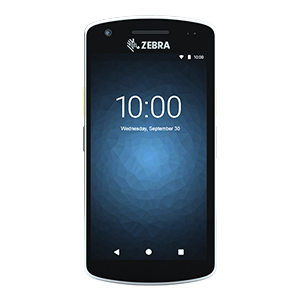
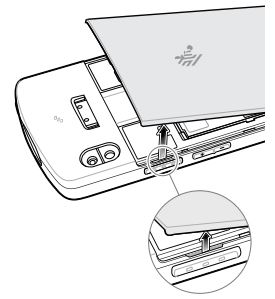
1. From the notch in the top left corner, use your fingernail or a plastic tool to lift the battery cover.
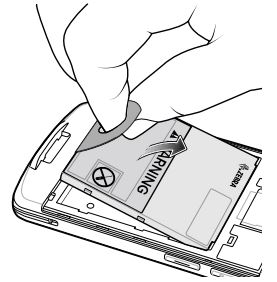
2. Use the battery pull tab to lift and remove the battery from the battery compartment.
3. Peel off the adhesive liner on the back of the battery.
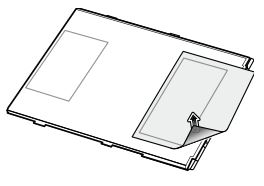
4. Insert the battery, top first and with the warning label facing up, into the battery compartment.
5. Press the battery down into the battery compartment.
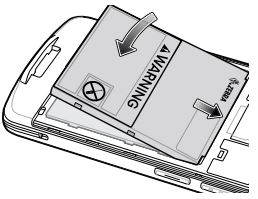
6. Insert the battery cover, bottom first, into the battery compartment.
7. Rotate the battery cover down into the battery compartment.
(When installing an extended battery, use the extended battery cover.)
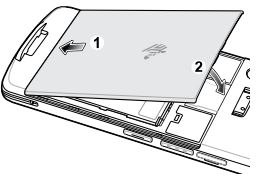
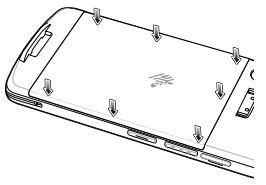
8. Press the sides of battery cover down until the notches on the sides snap into place.
Battery replacement steps apply to all MC33 series models such as MC3000, MC3300R, MC3300x, MC3300xR and MC3300ax.
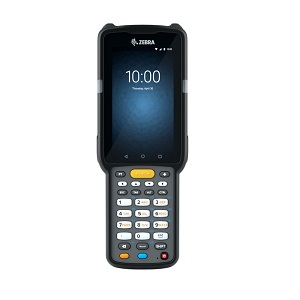
1. Push in the two Battery Release buttons. Replace the battery within five minutes to preserve memory persistence.
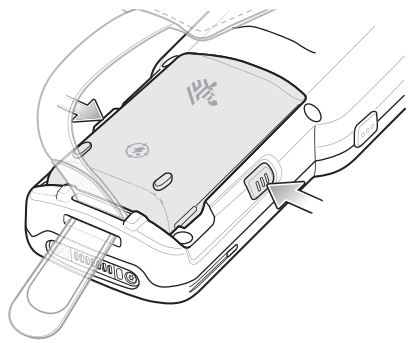
2. Remove the battery from the battery compartment.
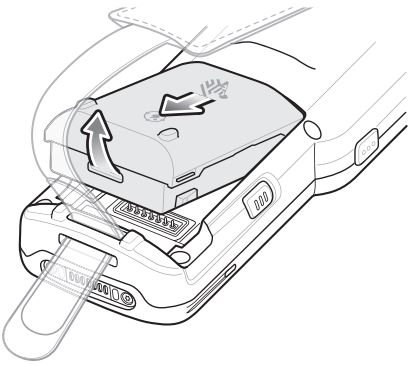
3. Slide the front of the battery into the battery compartment
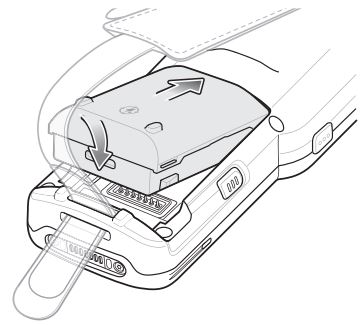
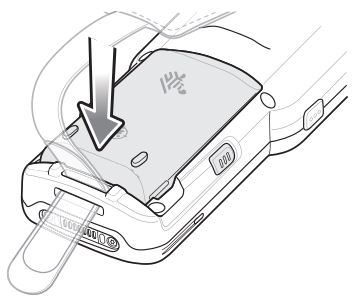
4. Press battery down firmly. Ensure that both battery release buttons on the sides of the MC33 return to the home position.
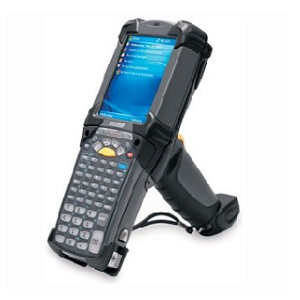
Battery replacement steps apply to:
all MC90 series models such as MC9000, MC9060, MC9060-G, MC9090 CE, MC9090-G, MC9090 WM and MC9090-Z.
all MC92 series.
1. Prior to removing the battery, press the red Power button.
2. Tap Safe Battery Swap.
3. The Indicator LED Bar lights red.
4. When the Indicator LED turns off, press the primary battery releases (1). The battery partially ejects from the device.
5. Press the secondary battery release (2), on top of the battery, and slide the battery out of the device.
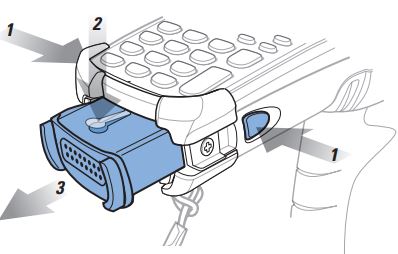
Battery replacement steps apply to all MC93 series models.

1. Push in the two primary Battery Release buttons.
The battery ejects slightly. With Hot Swap mode, when you remove the battery, the display turns off and the device enters a low power state. The device retains RAM data for approximately five minutes. Replace the battery within five minutes to preserve memory persistence.
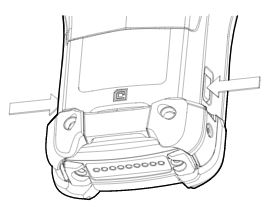
2. Push in the secondary battery release buttons on the sides of the battery.
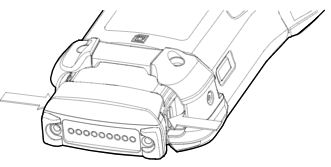
3. Remove the battery from the battery slot.
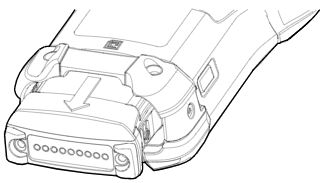
4. Align the battery with the battery slot and push the battery into the battery slot.
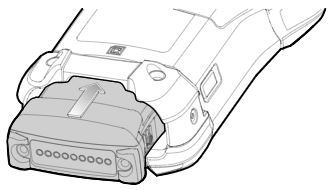
5. Press the battery firmly into the battery well.
Ensure that both the battery release buttons on the sides of the device return to the home position. You will hear an audible click sound indicating that both the battery release buttons on the sides of the device have returned to the home position locking the battery in place.
6. Press Power to turn on the device.
Battery replacement steps apply to all TC21 and TC26 series models.
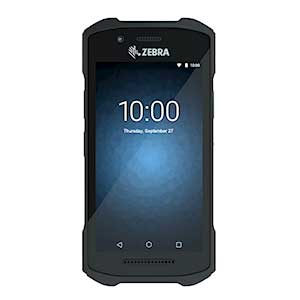
1. Press the Power button until the menu appears.
2. Touch Power Off.
3. Wait for the device to completely turn off.
4. If the hand strap is attached, slide the hand strap clip away from the bottom of the device, and then lift.
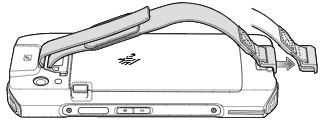
5. Press the two battery latches in.
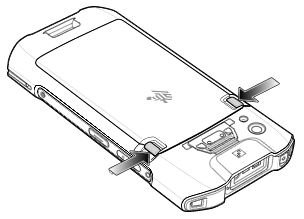
6. Lift the battery from the device.
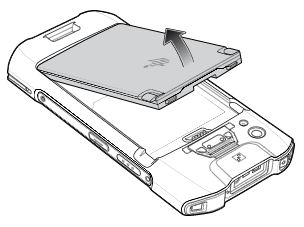
7. Insert the replacement battery, bottom first, into the battery compartment in the back of the device.
8. Press the battery down until the battery release latches snap into place.
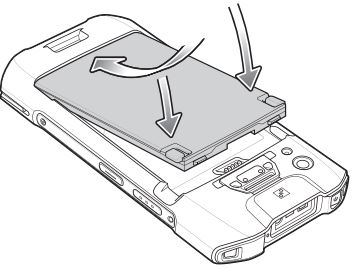
9. Replace the hand strap, if required.
10. Press the Power button to turn on the device.
Battery replacement steps apply to all TC51, TC52, TC56 and TC57 series models.
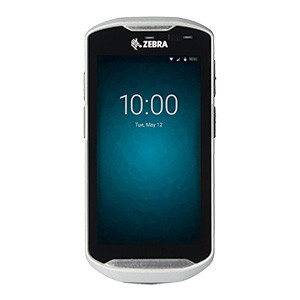
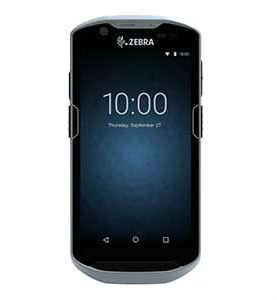
CAUTION: Do not add or remove microSD card during battery replacement.
1. Press the Power button until the menu appears.
2. Touch Battery Swap.
3. Follow the on-screen instructions.
WARNING: Do not remove the battery until after the red LED completely turns off. Loss of data may result.
4. Wait for the red LED to completely turn off.
5. If hand strap is attached, remove hand strap.
6. Press the two battery latches in.
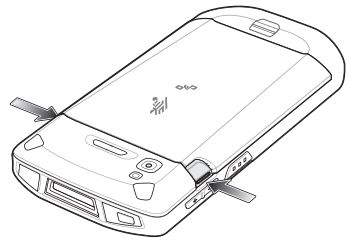
7. Lift the battery from the device.

8. Insert the replacement battery, bottom first, into the battery compartment in the back of the device.
9. Press the battery down until the battery release latches snap into place.
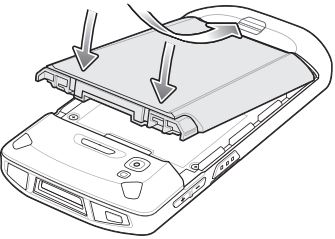
10. Replace the hand strap, if required.
11. Press the Power button to turn on the device.
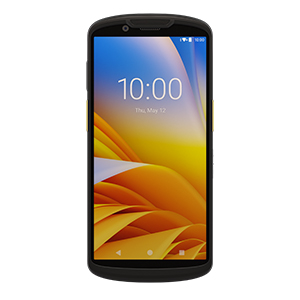
Note - True Hot Swap applies to premium devices only.
To perform a True Hot Swap:
1. If a hand strap is attached, remove the hand strap.
2. Press the battery latches in and lift up to remove the battery from the device. A 30 second countdown timer displays. The backup super capacitor takes over immediately and the device remains powered with the display dimmed.
Note: If the battery is not replaced after 30 seconds (max.), the device display turns off and the device enters into memory persistence state for an additional 60 seconds (max.).
3. Insert the replacement battery, bottom first, into the battery compartment in the back of the device.
4. Press the battery down until the battery release latches snap into place. If the device display turn off, it should automatically turn on.
Note: If the device does not automatically turn on, press and hold the power button for 6 seconds and the device reboots.
5. Replace the hand strap, if required.
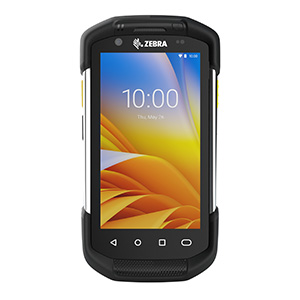
Battery replacement steps apply to all TC70, TC70x, TC72, TC75, TC75x and TC77 series models.

CAUTION: Do not add or remove microSD card during battery replacement.
1. Remove any accessory attached to the device.
2. Press the Power button until the menu appears.
3. Touch Battery Swap.
4. Follow the on-screen instructions.
5. Wait for the LED to turn off.
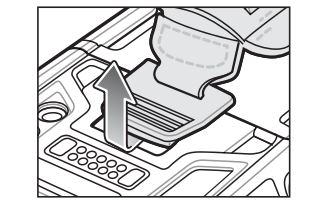
6. If hand strap is attached, slide the hand strap clip up toward the top of the device and then lift.
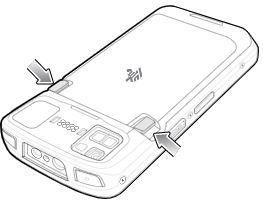
7. Press the two battery latches in and lift the battery from the device.
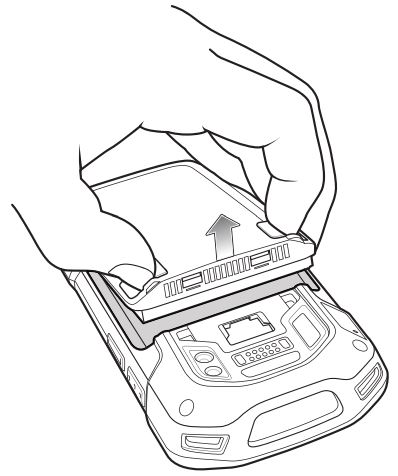
CAUTION: Replace the battery within two minutes. After two minutes the device reboots and data may be lost.
8. Insert the replacement battery, bottom first, into the battery compartment in the back of the device.
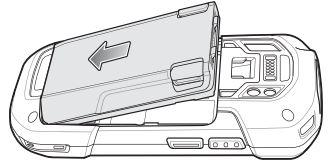
9. Press the battery down until the battery release latch snaps into place.
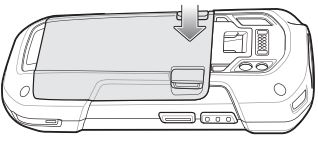
10. Replace the hand strap, if required.
11. Press and hold the Power button to turn on the device.
NOTE: After replacing the battery, wait 15 minutes before using Battery Swap again.

Legal Terms of Use Privacy Policy Your Privacy Choices Supply Chain Transparency
The Zebra wordmark and logo are trademarks of Zebra Technologies Corp., registered in many jurisdictions worldwide. All other trademarks are the property of their respective owners. Some content or images may have been created with the assistance of AI. ©2026 Zebra Technologies Corp. and/or its affiliates.